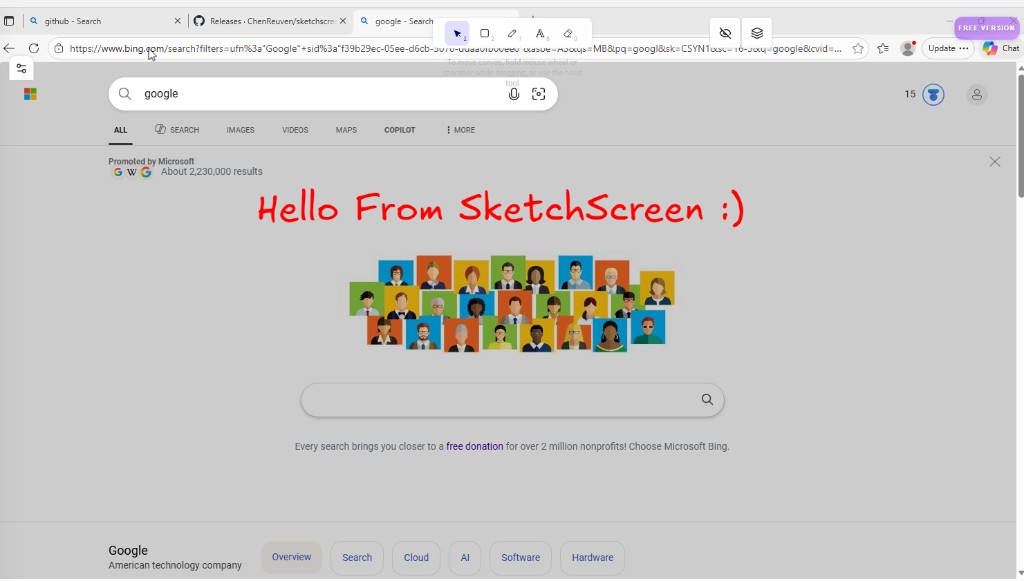
Step 1
Open downloaded DMG
Open Finder > Downloads. Locate SketchScreen_0.0.27_x64.dmg and double-click it.
Follow these step-by-step instructions for macOS or Windows.
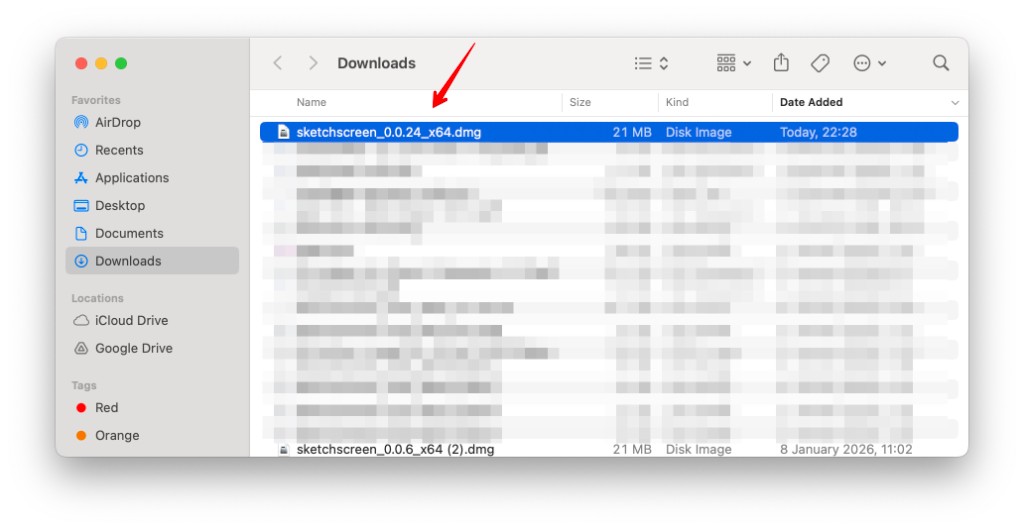
Step 1
Open Finder > Downloads. Locate SketchScreen_0.0.27_x64.dmg and double-click it.
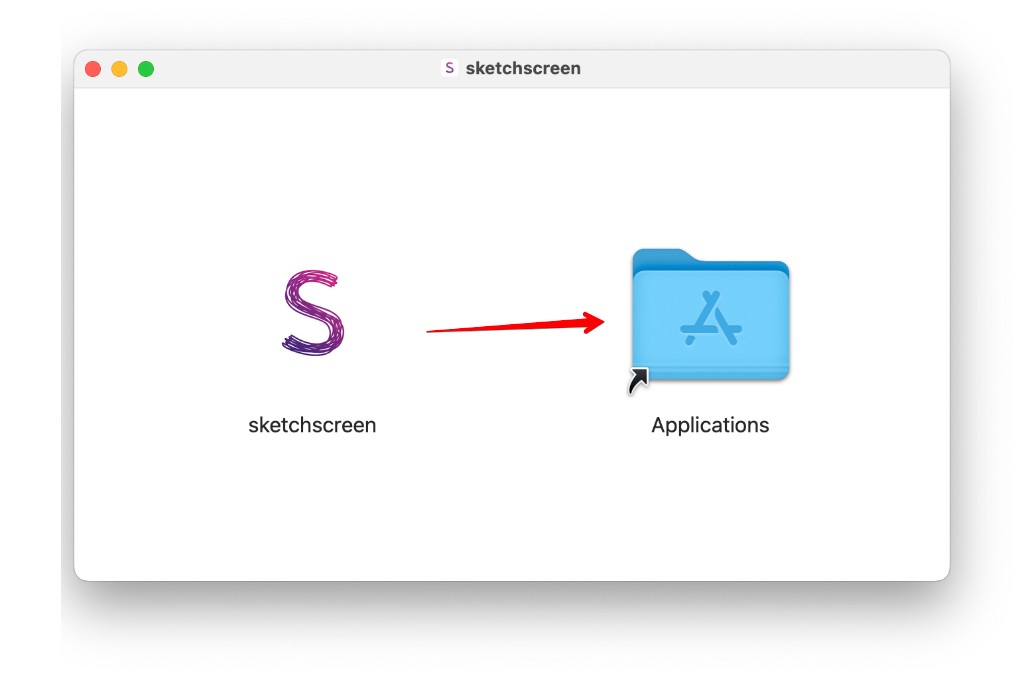
Step 2
In the installer window, drag the SketchScreen icon into the Applications folder.
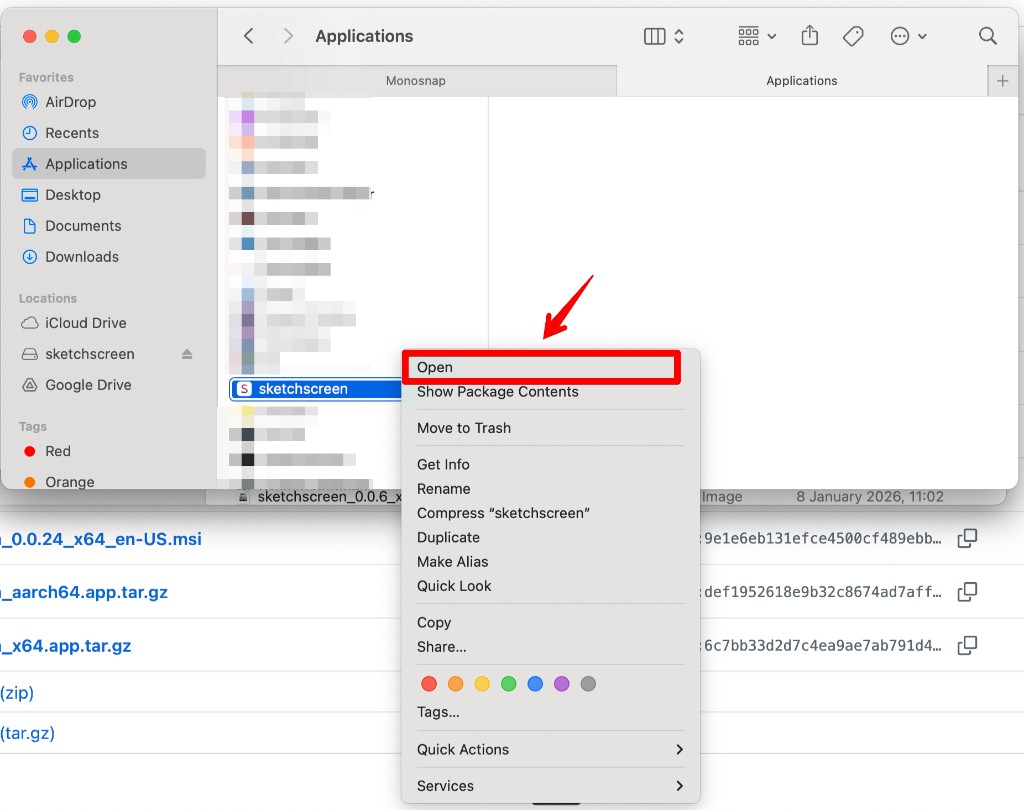
Step 3
Open Finder > Applications, then right-click SketchScreen and choose Open. This is required on first launch.
Step 4
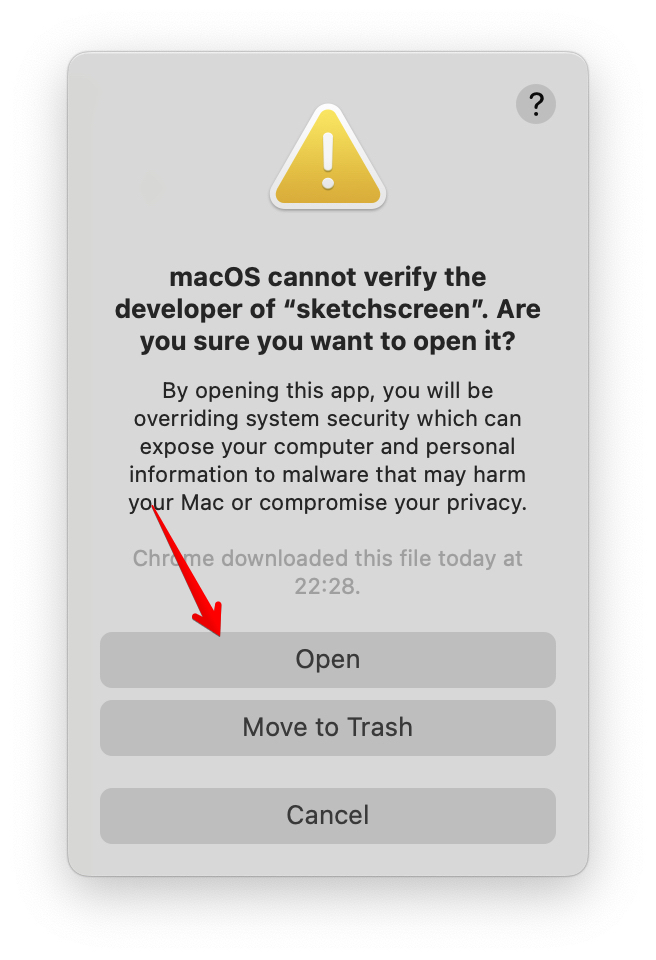
If macOS shows "cannot verify the developer", click Open to continue.
Step 1
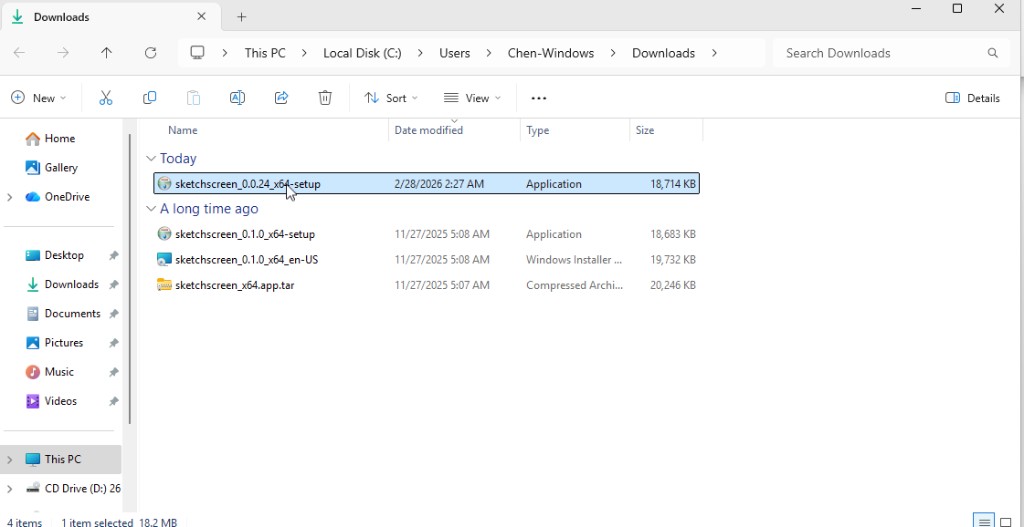
Open Downloads and double-click SketchScreen_0.0.27_x64_en-US.msi.
Step 2
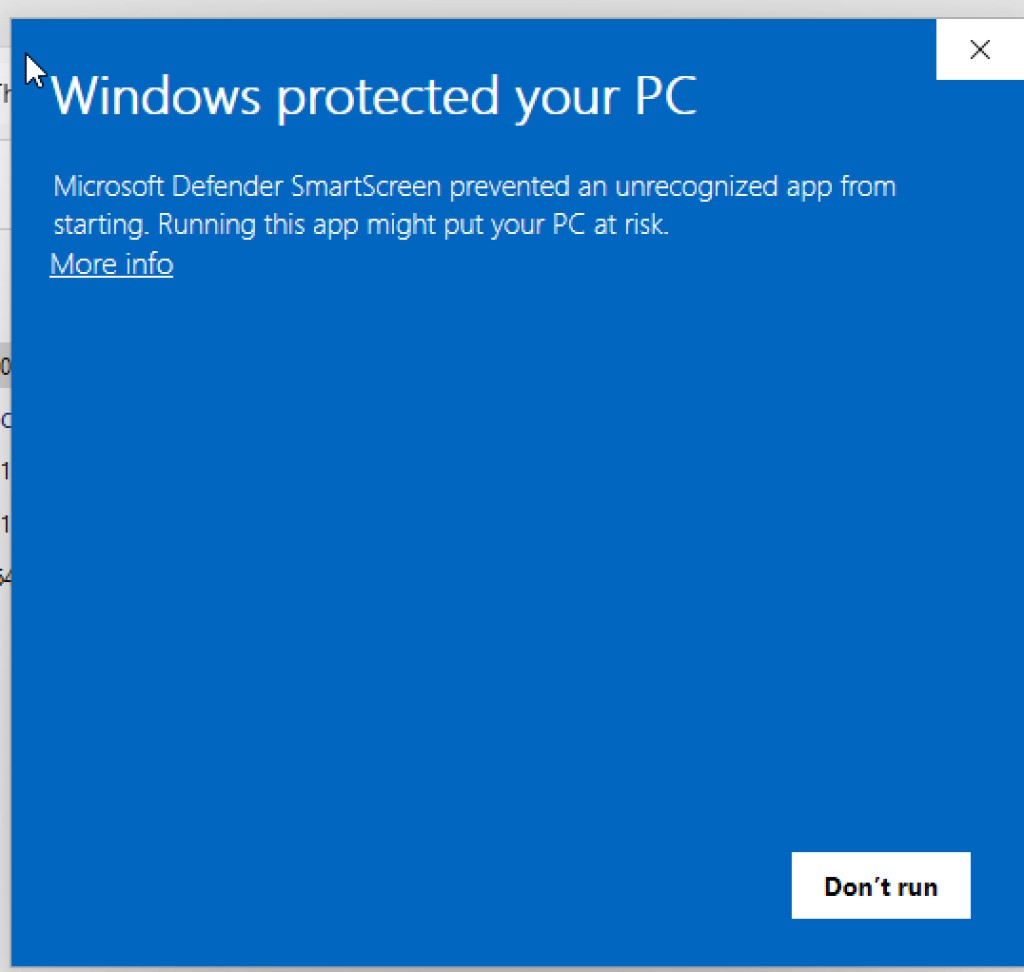
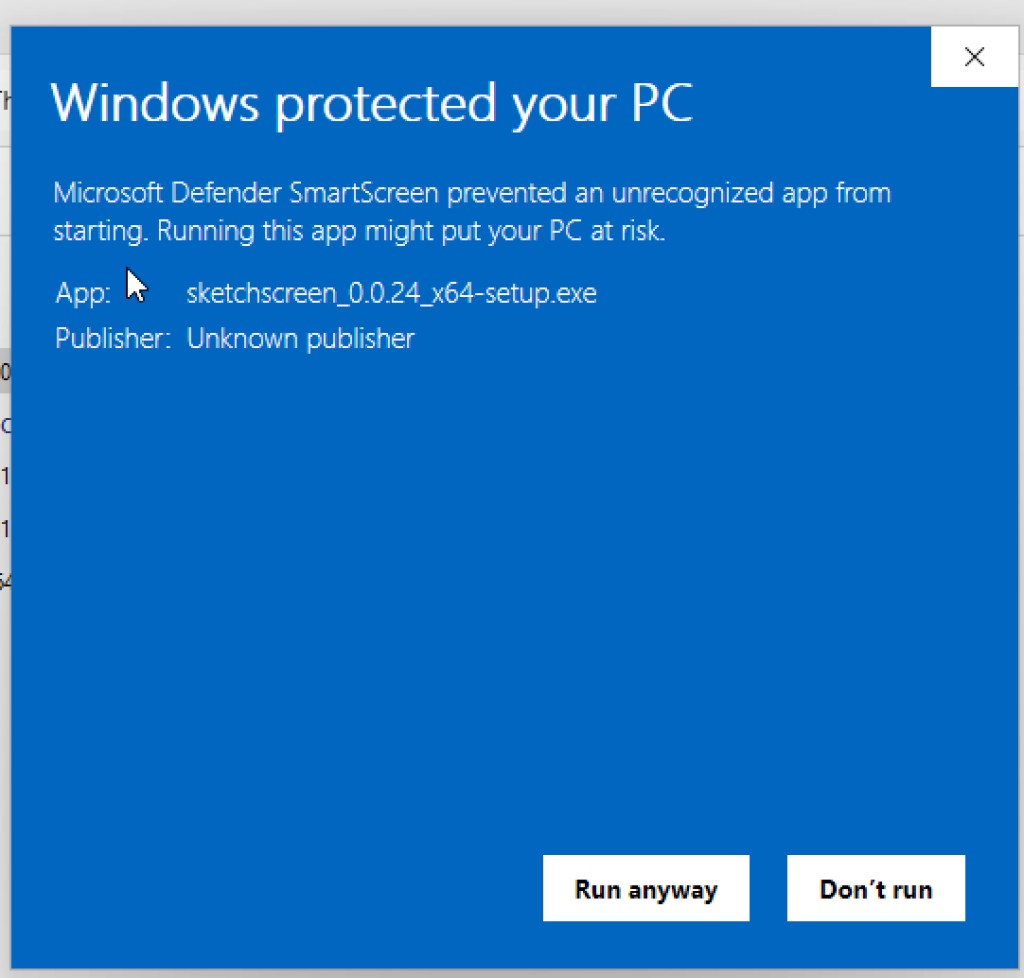
If "Windows protected your PC" appears, click More info to continue.
Step 3
After expanding details, click Run anyway to launch setup.
Step 4
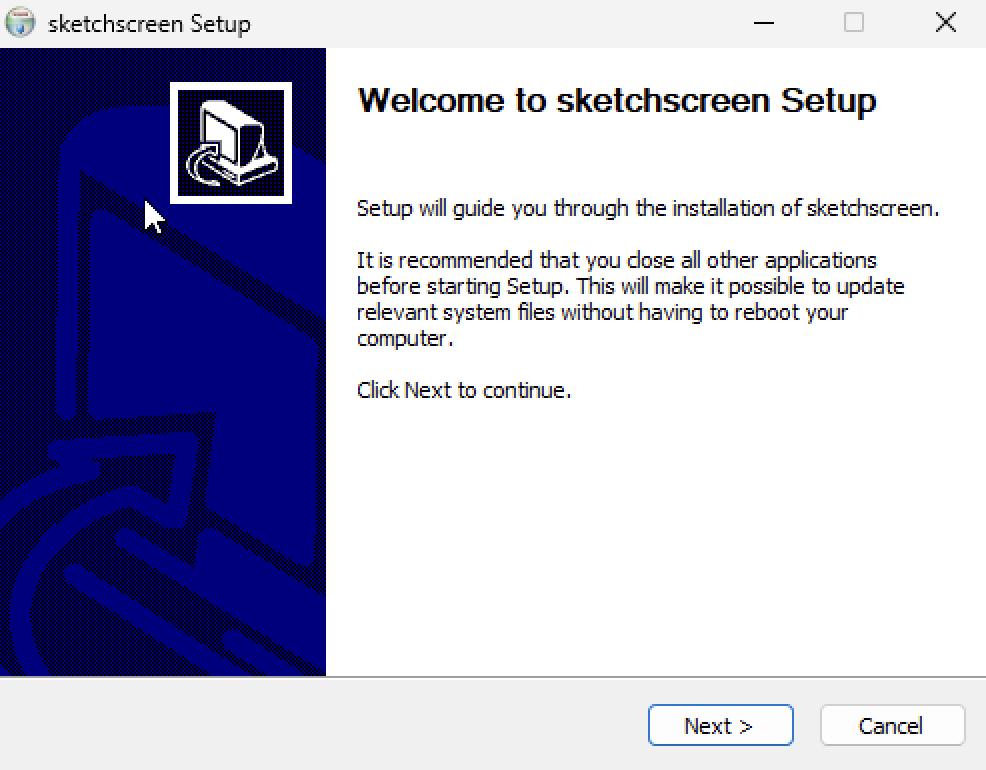
In the welcome window, click Next.
Step 5
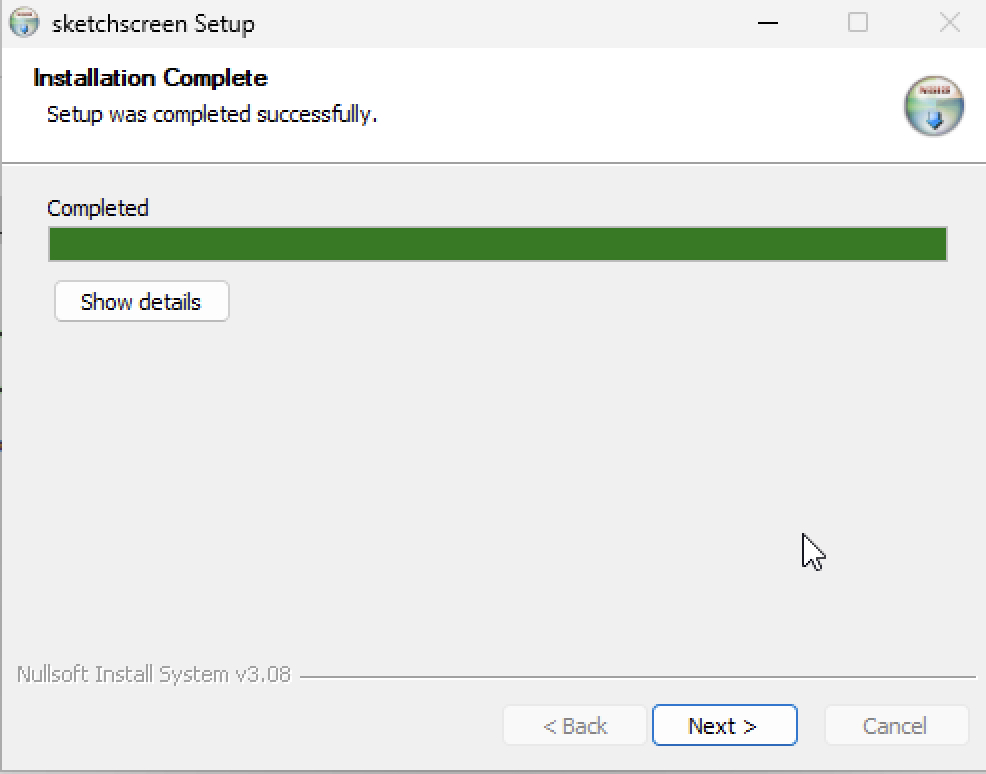
Setup installs files automatically. When complete, click Next.
Step 6
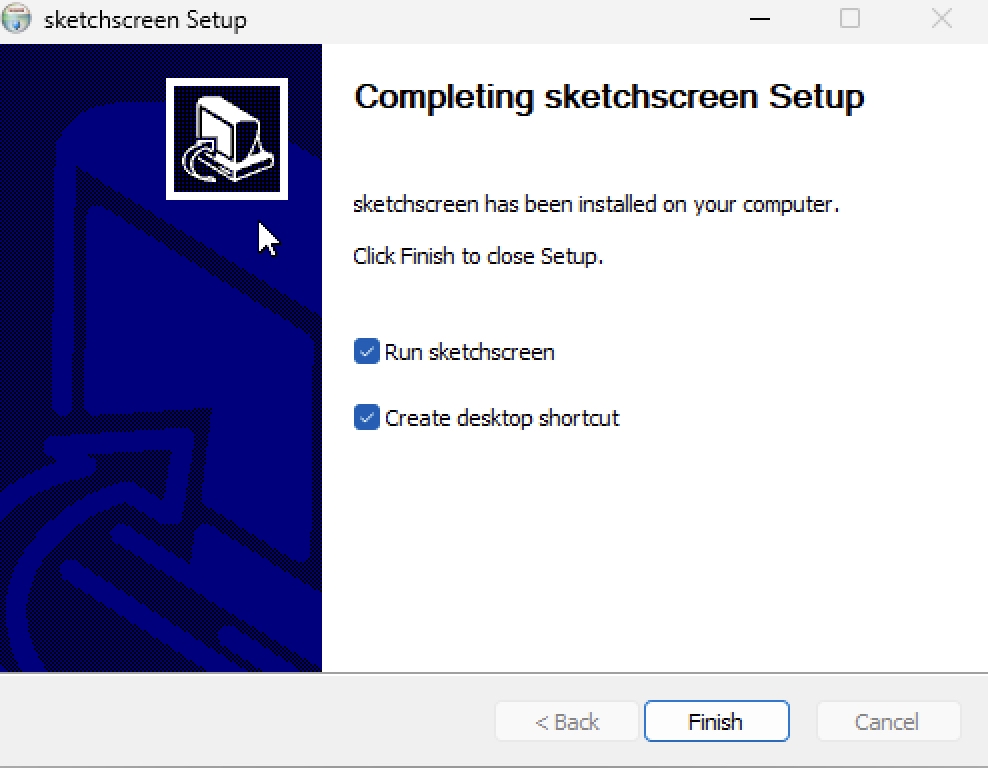
Keep Run sketchscreen checked if you want to launch now, then click Finish.
Step 7
Confirm SketchScreen opens and the drawing overlay appears on your screen.
Step 8
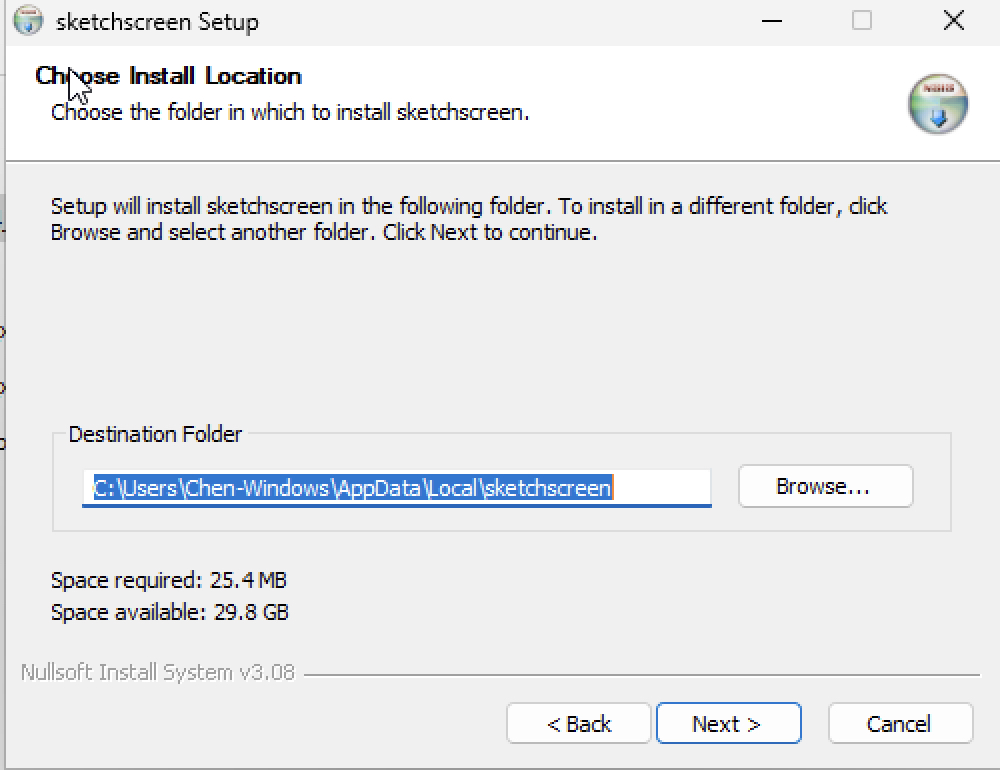
If you need a different install path, click Browse and choose one before installing.